

Counter

iPhone / iPad · iOS 15.0+

Tap to count.Rewind any miscount.

A counter that goes up or down by one with each tap. Every count is saved to the history, so a miscount can be rewound to an earlier value.

Scan with your iPhone

Counter

When it helps

What it does

  1. 01

    Count up or down

    Switch with the plus and minus control at the top. Each tap on the number adds or subtracts one.

  2. 02

    History of 300 records

    Each count is saved with its date and time, up to 300 records.

  3. 03

    Rewind from the history

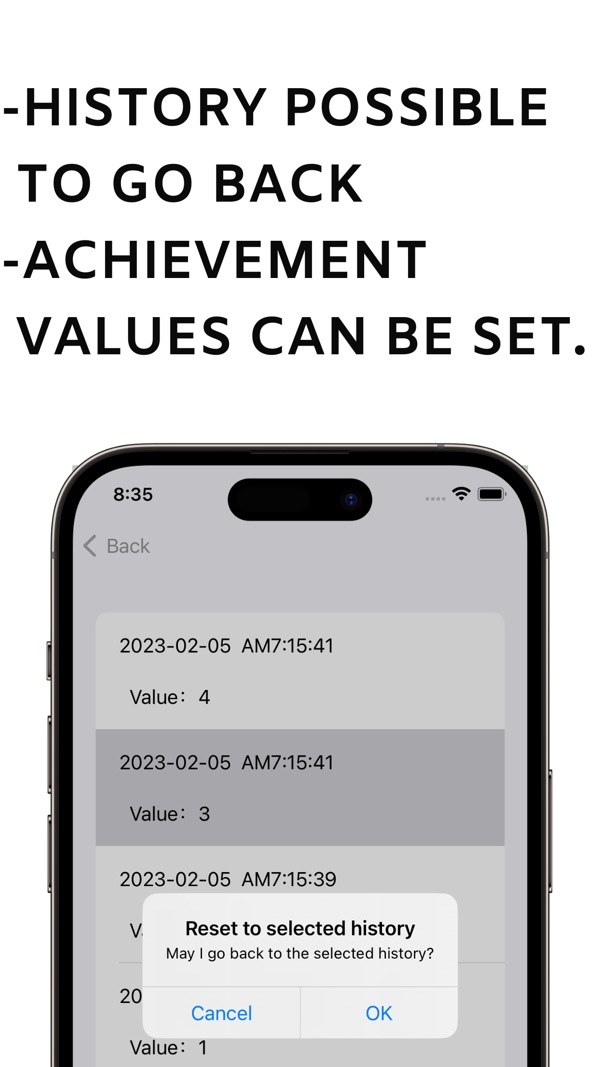
    Pick a row in the history and, after a confirmation, the count returns to that value. No need to start over after a miscount.

  4. 04

    30+ sounds and read-aloud

    Choose the tap sound from more than 30 types, or have each count read out loud.

  5. 05

    A sound at your target

    Save an achievement value, and a different sound plays when the count reaches it.

  6. 06

    Display settings

    Set the text size, dark mode, the value used after a reset and more.

In detail

Count up or down with one switch
01

Count up or down with one switch

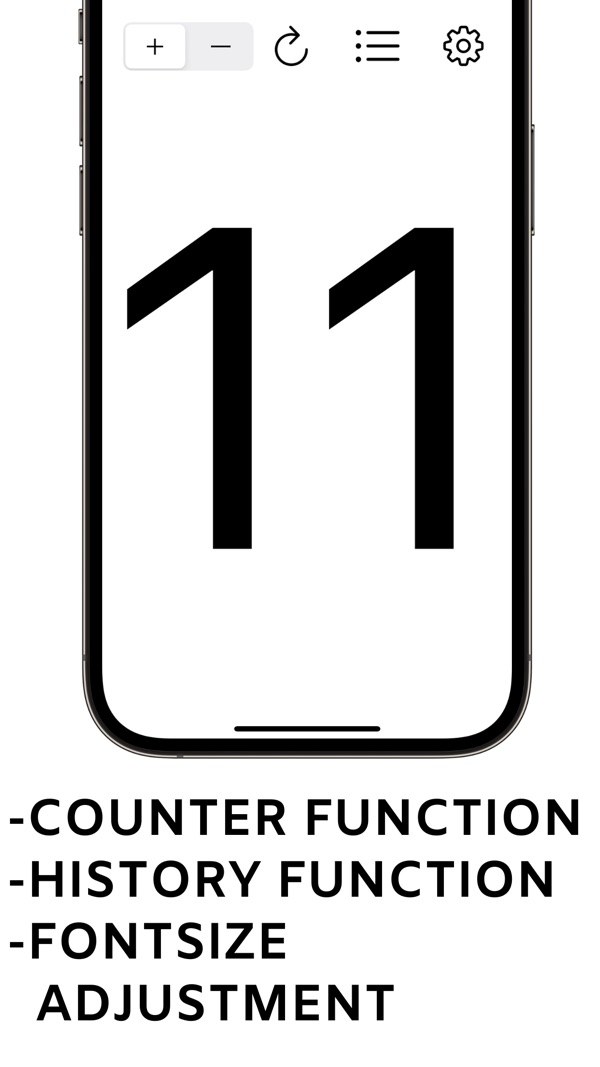
The plus and minus control at the top switches between counting up and counting down. Tap the big number to add or subtract one each time, and use the reset button to start over.

  • Tap the number to count
  • Plus / minus switch
  • Reset button
Go back to an earlier count from the history
02

Go back to an earlier count from the history

Each count is saved to the history with its date and time. Pick a row and the app asks you to confirm before it returns to that value.

  • Up to 300 records
  • Date, time and value listed
  • Confirmation before going back
A different sound at your achievement value
03

A different sound at your achievement value

Add achievement values in Settings. For example, if you save 5, a different sound plays when the count reaches 5. You can choose the sound used for achievements.

  • Add values as numbers
  • Choose the achievement sound
More than 30 sounds, or text-to-speech
04

More than 30 sounds, or text-to-speech

Choose the tap sound from more than 30 types, or have the app read each count out loud. Volume and vibration can be adjusted too.

  • 30+ sound sources
  • Text-to-speech
  • Volume and vibration settings
05

Adjust how the screen looks

Change the text size, switch the screen orientation, turn dark mode on or off, and set the animation. You can also set the value the counter returns to after a reset.

  • Text size
  • Screen orientation
  • Dark mode

How it works

  1. 1
    Choose plus or minus at the top

    Choose plus or minus at the top

    Pick plus to count up or minus to count down.

  2. 2
    Tap the number to count

    Tap the number to count

    The number changes by one each time you tap it. Sound, vibration and read-aloud are set in Settings.

  3. 3
    Fix a miscount from the history

    Fix a miscount from the history

    Open the history with the list button and select the row you want. Press OK on the confirmation to return to that value.

  4. 4

    Set sounds, achievement values and display

    Use the gear button to set the sound source, volume, dark mode, text size, achievement values and more.

Screens

Tap the big number to count

FAQ

Does it cost anything?

The app is free to download, and all of its features are free to use. It shows ads.

Does it show ads?

Yes. Ads from Google AdMob appear. Besides the banner on the main screen, a full-screen ad may appear when you go back from the history or settings screens.

How many history records are kept?

Up to 300 records.

What if I miscount?

Open the history, select the row you want and press OK on the confirmation. The count returns to that point.

Can I change the counting sound?

You can choose from more than 30 sound sources, or have the count read out loud instead.

Can it signal when I reach a target number?

Save a number under Achieved value in Settings. When the count reaches it, a different sound plays.

Does a reset always go back to 0?

You can set the value used after a reset under Value After Reset in Settings.

Which devices are supported?

iPhone and iPad, iOS 15.0 or later.

Count freely. Mistakes can be undone.

Download on the App Store
CounterGet